How to add an Email Account to Mac Mail
-
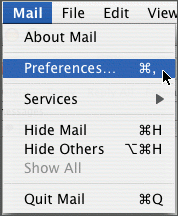
In Mac Mail, go to the Mail menu and click on Preferences.
-
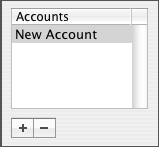
Click the Accounts icon in the Mail Preferences window.
-
Click to create a new account.
-
Select POP from the drop down menu.
-
Enter your email information:
|
User Infomation:
|
|
Your Name:
|
This is the name that will be displayed when sending your email
|
|
Email Address:
|
The email address people will reply to when receiving email from you
|
|
Logon Infomation:
|
|
User Name:
|
Your email address name example: name@yourdomain.com
|
|
Password:
|
Provided by your email provider
|
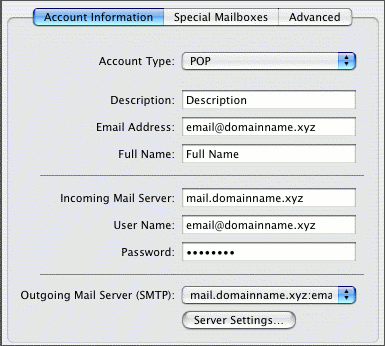
- From the Outgoing Mail Server dropdown select Add Server.
-
Enter the Outgoing Mail server information.
|
Server Information:
|
|
Incoming Server (POP3):
|
mail.yourdomainname.com
|
|
Outgoing Server (SMTP):
|
mail.yourdomainname.com
|
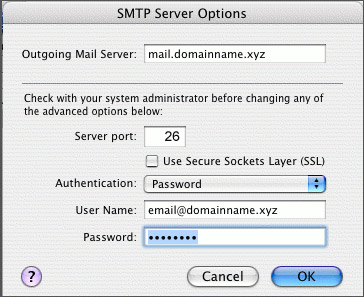
- Click OK.